
How to Crop a Photo for 4×6, 5×7 and 8×10 Prints
Print the same photo at 4 × 6 and at 8 × 10 and you will get two different pictures. The sizes have different shapes, so each one trims a different amount from the edges. If you do not choose the crop yourself, the printer or lab chooses it for you, and that is how people at the end of a group photo lose an arm, or a head. This guide shows the shape of each common print size and how to choose the crop before you print.
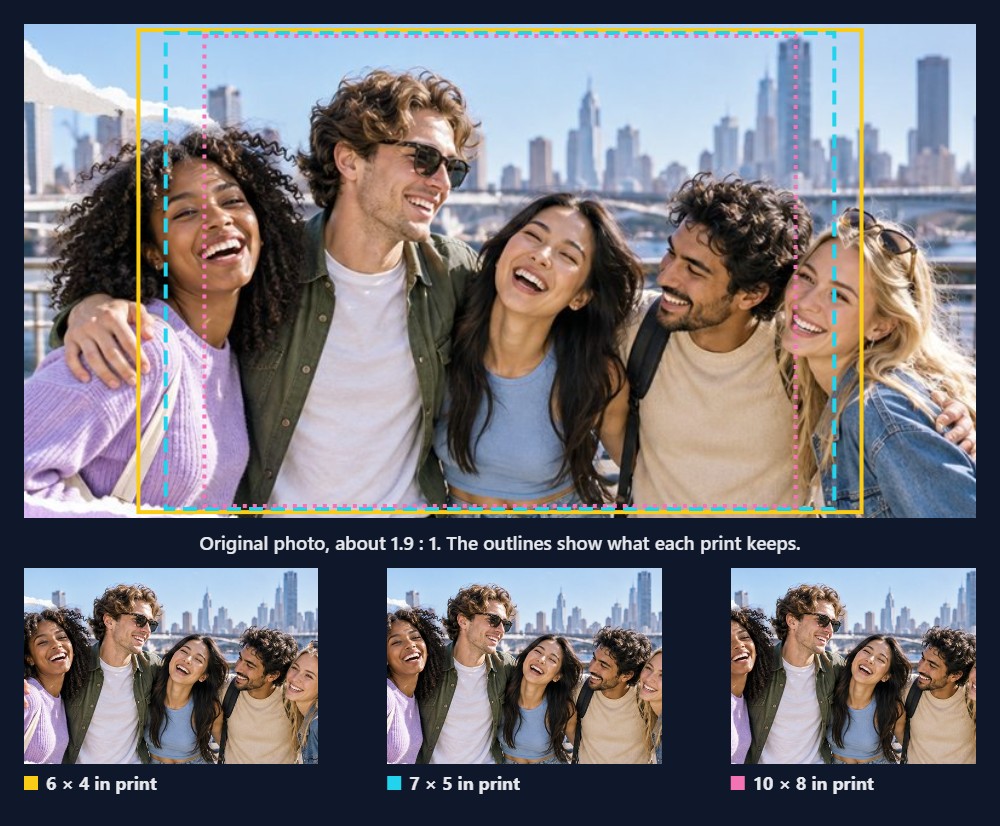
Why print sizes need different crops
What matters is a print's shape, its width divided by its height, not its size. A 4 × 6 print is 1.5 times as long as it is wide. An 8 × 10 is only 1.25 times as long, so it is noticeably squarer. A photo can only fill a print without cropping if it has exactly the same shape.
Phone cameras usually take photos in a 4:3 shape (1.33), which matches none of the common print sizes exactly. Wide photos, panoramas, and video stills are wider still. The photo above is almost twice as wide as it is tall, so every print size has to cut something away.
The shape of common print sizes
| Print size | Shape | Compared with a 4:3 phone photo |
|---|---|---|
| 4 × 6 in | 2:3 (1.50) | Longer and narrower: trims about 11% of the photo's height |
| 5 × 7 in | 5:7 (1.40) | Close: trims about 5% |
| 8 × 10 in | 4:5 (1.25) | Squarer: trims about 6% of the photo's width |
| 8 × 12 in | 2:3 (1.50) | Same shape as 4 × 6 |
| A4 and A5 | 1:1.41 | Slightly longer: trims about 6% |
| Square | 1:1 | Trims a quarter of the photo |
Percentages are the share of a 4:3 photo removed to fill the paper, calculated from the two shapes.
How to choose the crop in Pixemon
- Open your photo and choose the paper size you will print on.
- Turn the outline to match the photo. The paper outline starts upright; use the rotate button next to the paper size for a sideways (landscape) print.
- Look at the outline on the photo. Pixemon draws the largest area of the chosen paper's shape that fits inside your photo, centred. Everything outside it will not be printed.
- If the centred area is right, press Crop to Wire Frame. Pixemon crops the photo to exactly that shape and tells you its new size in pixels. The photo's rotation must be at 0° for this step.
- If you want a different part of the photo, use the Crop tool first to trim roughly around the area you want, then use Crop to Wire Frame to get the exact print shape.
When you print a single photo, Pixemon prints the area inside the paper outline at the paper's exact shape, so the photo is never stretched to fit. Cropping first simply lets you choose which part that is.
What to keep when you crop
- Space above heads. Cutting through the top of someone's head looks like a mistake; leave a little space above the tallest person, or crop decisively through the forehead in a close-up portrait.
- Hands and feet whole. Avoid cropping exactly at joints: wrists, elbows, knees, and ankles. Crop between them instead.
- Everyone in a group. If a squarer print cuts off people at the ends, as in the example, choose a longer print size such as 4 × 6 or 8 × 12 instead.
- Room for the frame. A physical frame covers a few millimetres on every side. Do not put faces or text right at the edge.
Cropping costs pixels
Every crop removes pixels, and the remaining area is enlarged to fill the paper. In the example, the 10 × 8 crop keeps 498 of the photo's 786 pixels across. Printed 10 inches wide, that is only about 50 pixels per inch, far below the 200 to 300 that look sharp in a photo you hold. A small photo can be cropped to fit a small print but not a large one. Our print resolution guide shows how to check.
When you do not want to crop at all
Sometimes the whole photo matters more than filling the paper, such as a panorama or a group where nobody can be cut. Then choose fit instead of fill when ordering, so the lab adds white borders. Or place the photo in a Pixemon layout or collage, where it sits inside a white margin on the sheet.
Common questions
Why did my lab print cut off the edges when I did not crop?
Most labs fill the paper by default, so they trim whatever does not fit the print's shape. Cropping first, or choosing a "fit" or "no crop" option, avoids surprises.
Which print size suits a phone photo best?
5 × 7 is the closest common shape to a 4:3 phone photo, so it loses the least. 4 × 6 is the most common size and trims a little more from the top and bottom.
Crop a photo for print
Open a photo in Pixemon, choose a paper size, and see exactly what the print will keep.
Open the Pixemon editorRelated guides: how many pixels a print needs and where to print your photos.