
How to Save and Share Photos Without Losing Quality
A photo can look perfect on your phone and then come out soft, blocky, or small after it has been saved, sent, and saved again. Most of that damage comes from two things: compression, which throws away detail to make files smaller, and resizing, which throws away pixels. This guide explains both, so you can choose the right file type and send photos in a way that keeps them sharp, especially when they are going to be printed.
JPEG and PNG: the two formats you will meet most
- JPEG makes files small by discarding fine detail the eye is least likely to notice. The quality setting decides how much is discarded. It is the standard format for photos from cameras, phones, and the web.
- PNG is lossless: every pixel is kept exactly. Files are much larger, but nothing is thrown away, and PNG can store transparency, which JPEG cannot.
To see the difference, we saved the same 786 × 408 pixel photo in different ways in a web browser and measured the files:
| Saved as | File size | What you see |
|---|---|---|
| PNG | 659 KB | Identical to the original |
| JPEG, quality 95 | 130 KB | No visible difference at normal size |
| JPEG, quality 60 | 44 KB | Slight smearing in fine detail such as hair |
| JPEG, quality 20 | 21 KB | Visible blocks and colour smudges |
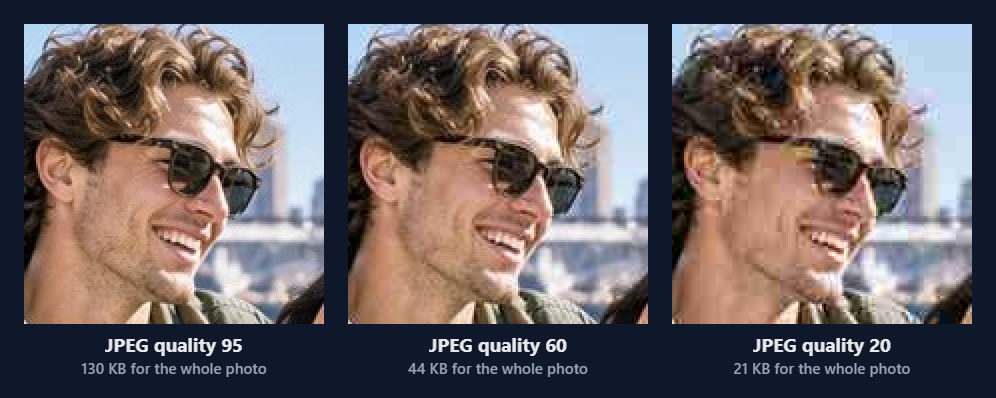
The practical lesson: a high-quality JPEG is an excellent format for photos, small and visually lossless. The damage comes from low quality settings, and from saving a JPEG again and again, because each save discards a little more.
Which should you use?
- Photos for sharing, printing at a lab, or storing: high-quality JPEG (90 or above), or the original file from your camera.
- Cut-outs with a transparent background, graphics with text, and files you will keep editing: PNG.
- A file you have to send somewhere that limits file size: JPEG at a lower quality, but check the result.
Pixemon lets you choose when you save. JPG is saved at high quality (92), small enough to share and send to a print lab with no visible loss. PNG keeps every pixel exactly and keeps the transparency of cut-outs. Whichever you choose, keep that file as your master copy rather than repeatedly re-saving a JPEG.
Why photos get worse when you share them
Chat apps shrink photos
Messaging apps usually resize and recompress photos to save data, often to around 1600 pixels on the long side in their standard setting. That is fine for viewing on a phone but too small for most prints larger than 4 × 6 at good quality. Many apps offer an HD option, or let you send the photo as a document or file, which keeps the original.
Social media shrinks photos too
Social platforms resize uploads to fit their layouts, typically to around 1080 pixels wide for feed images, and compress them. A photo saved back from a social media app is a small copy, not your original. Our print resolution guide shows how large such an image can sensibly be printed.
Screenshots are not copies
A screenshot only captures the pixels on your screen. A screenshot of a photo, or of a collage preview, has far fewer pixels than the photo itself, and anything around it on screen is included too. Always send the saved file.
Some phones save in a format others cannot open
Many iPhones save photos in the HEIC format to save space. Some printers, kiosks, and websites do not accept it. iPhones usually convert to JPEG automatically when sharing, and the camera can be set to Most Compatible to save JPEG directly.
How to send a photo that will be printed
- Start from the original from the camera or phone that took it, not a copy that has been through a chat app.
- Send it as a file. Use email, a cloud storage link, or the "send as document" option in a messaging app, so the photo is not resized.
- Check the pixel size that arrives. If a 4032-pixel photo arrives as 1600 pixels, it was resized on the way.
- Avoid repeated saving. Each edit-and-save cycle of a JPEG loses a little detail. Keep the original and save edits as new files.
One more thing: hidden information in photos
Photos from phones often contain hidden information, such as the date, the phone model, and sometimes the exact location where the photo was taken. Think about that before posting family photos publicly. Images saved from Pixemon are newly created files and do not carry over this hidden information from the original.
Common questions
Does converting a JPEG to PNG improve it?
No. PNG keeps exactly what is there, including any JPEG damage. It only stops further losses from future saves.
Why is my PNG so large?
Because it keeps every pixel exactly. For a photo, a JPEG at quality 90 or above is usually a fraction of the size with no visible difference.
Edit without losing quality
Pixemon edits in your browser and saves high-quality JPG or lossless PNG files at full resolution.
Open the Pixemon editorRelated guides: how many pixels a print needs and where to print your photos.