
How to Make a Photo Collage on Your Phone
You do not need a dedicated app to make a photo collage on your phone. Pixemon runs in your phone's web browser, so you can open the site, pick a layout, fill it with photos from your gallery, and save the result, without installing anything or creating an account. This guide walks through it step by step.
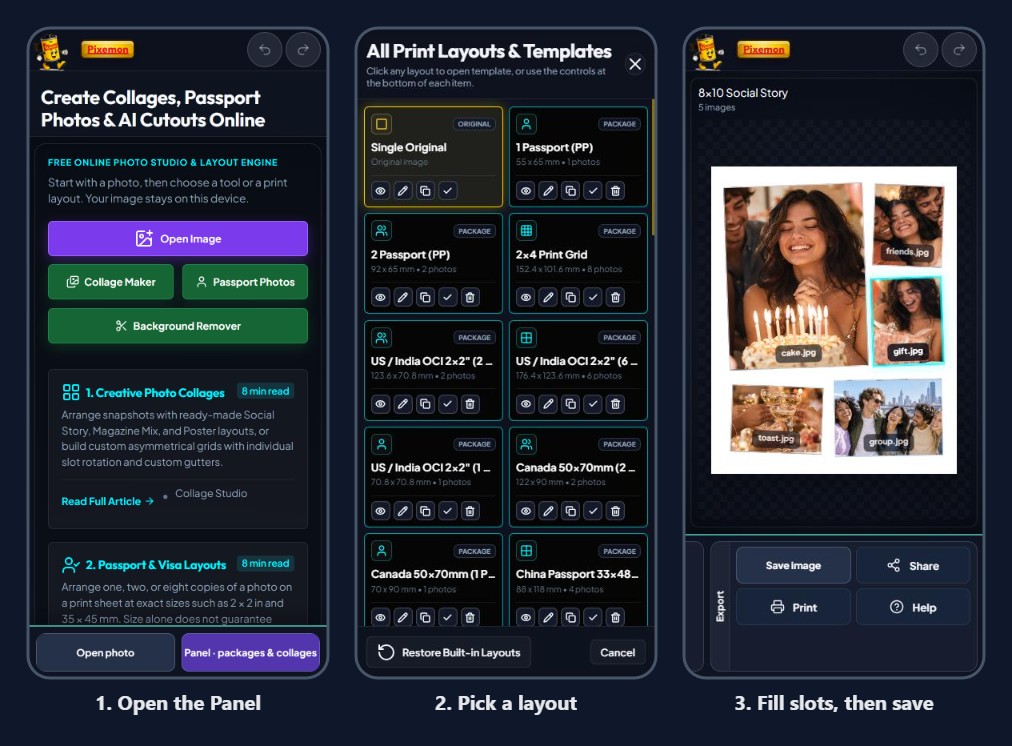
Step 1: Open the Panel
Open pixemon.com in your phone's browser. At the bottom of the screen there are two buttons: Open photo and Panel · packages & collages. Tap Panel to see every layout.
Step 2: Pick a layout
The layout list shows each template's name, size, and number of photos. Collage templates such as 8x10 Social Story (five photos) or 8x12 Creator Grid (seven) suit memories and gifts; print packages such as 2x4 Print Grid repeat one photo several times. Tap the tick on a layout to open it.
Choose the number of photos first. A layout with more slots than you have good photos leads to weak filler pictures; one with fewer slots forces you to leave favourites out.
Step 3: Fill each slot
The layout appears with numbered slots labelled Load image 1, Load image 2, and so on. Tap a slot and your phone opens its photo picker; choose the photo for that slot. Repeat for every slot. Slot 1 is usually the largest, so give it your strongest photo.
Each photo is scaled to fill its slot and the overflow is cropped. Look at every slot after loading: tall or wide slots crop a lot, and a face near the edge of a photo can be cut. If a crop is wrong, tap the slot again and choose a photo whose shape suits it better.
Step 4: Save or share
Swipe the tool cards at the bottom to the Export card:
- Save JPG or Save PNG downloads the collage to your phone at full print resolution. JPG gives a much smaller file for sharing and printing; PNG keeps every pixel exactly.
- Share opens your phone's share sheet, so you can send the collage to an app or a contact. If your browser cannot share files, Pixemon copies the image so you can paste it instead.
- Print opens your phone's print dialog with the paper size already set, so you can print to a nearby printer or save a PDF.
Everything happens in the browser on your phone. Your photos are not uploaded to make the collage.
Tips for a better phone collage
- Use the original photos. Pick photos from your camera roll rather than copies saved from chat apps or social media; those have been shrunk and look soft when printed.
- Mix wide and close shots. A wide scene in the big slot and close-ups in the small ones looks better than several similar group shots.
- Check faces at full size. Pinch to zoom in on the preview before saving; small problems are hard to see on a phone screen.
- Mind the shape for printing. If you plan to print, choose a template made for that paper, such as 8 × 10 or 8 × 12, so the collage fills it without being cropped. See cropping for print sizes.
- Send the file, not a screenshot. A screenshot of the preview has far fewer pixels than the saved collage.
Common questions
Is it free, and do I need an account?
Pixemon is free to use and does not need an account. The site shows advertising to cover its costs.
Can I make my own layout on a phone?
Yes. In the Panel's layout list, tap the pencil on a collage to open it in the layout builder, change the position and size of each photo box in millimetres, and save it as your own layout. On a computer you can also start a new collage from scratch with Add Package and then Collage.
Why is my saved collage so large?
Collages are saved at print resolution, 300 pixels per inch, so an 8 × 10 collage is 2400 × 3000 pixels. That is what makes it print sharply. For quick sharing, the messaging app will shrink it anyway; see saving and sharing without losing quality.
Make a collage now
Open Pixemon on your phone, tap Panel, and pick a layout.
Open the collage makerRelated guides: collage layout ideas and making a print-ready collage.